


Buying a Used iPhone in Qatar? 12 Checks to Do Before You Pay
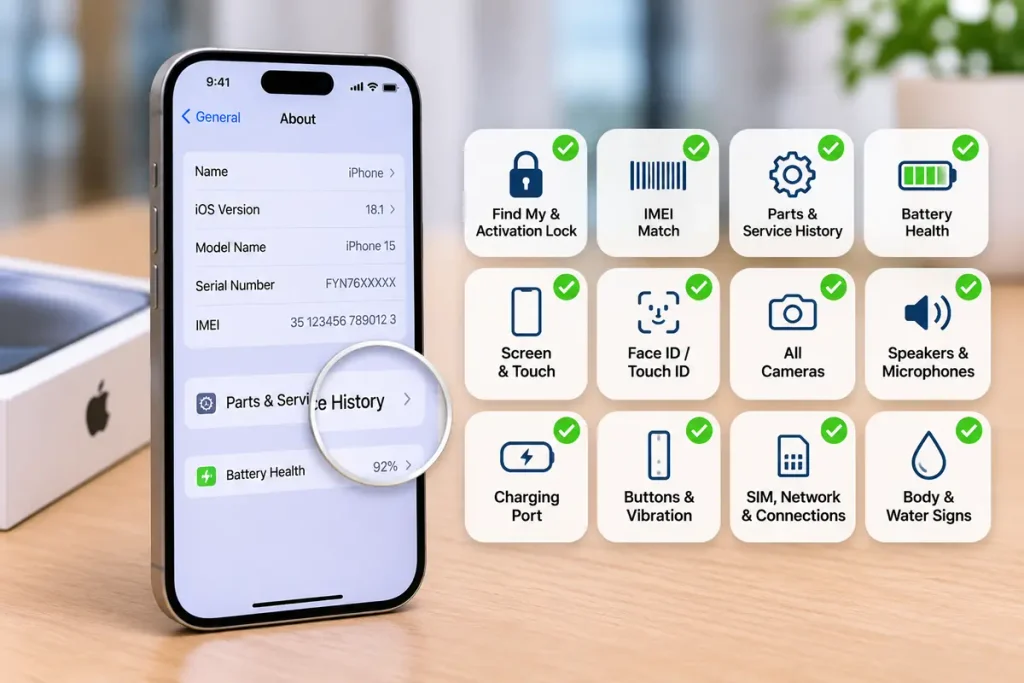
Before you pay for a used iPhone, make sure Find My and Activation Lock are switched off, the IMEI matches the box, and Parts and Service History shows no unknown parts. Then check battery health, the screen, cameras, speakers, charging port and buttons. These 12 checks take about 15 minutes and protect you from the most common second hand problems.
Qatar has a busy second hand iPhone market. People sell when they upgrade to a new model, when they leave the country, or when a family member gets a new phone. November sales also push many people to sell their old phone and buy another. A good used iPhone can save you a lot of money. A bad one can cost you the full price and still not work.
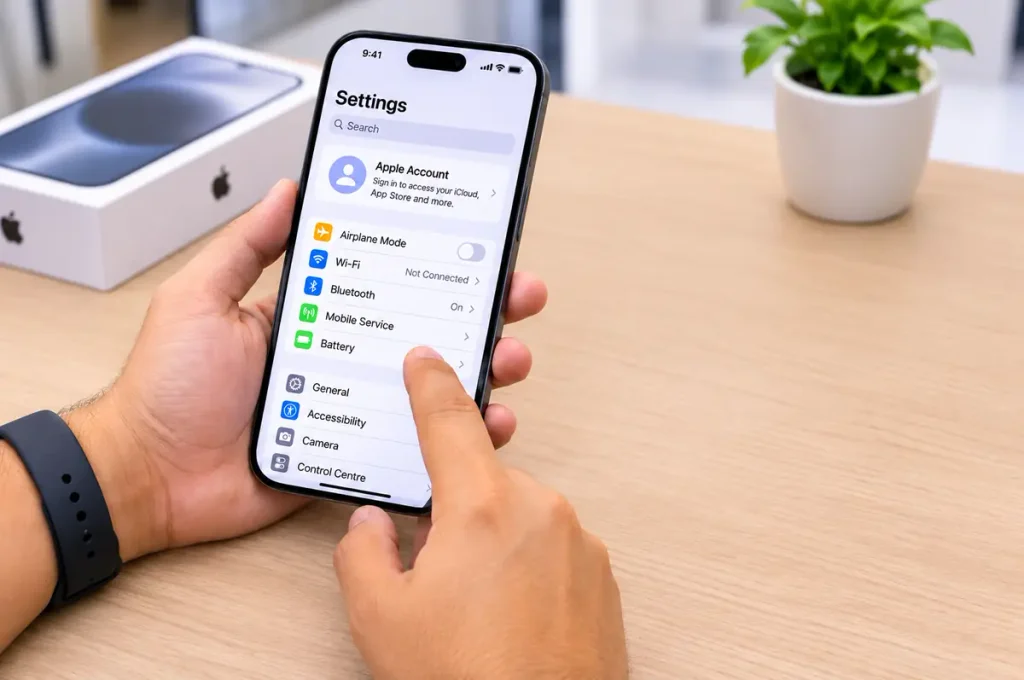
This guide is written by the Tech Care Qatar repair team. These are the same faults we see every week on phones that were bought second hand.
Before you meet the seller
Do these three things before you travel to see the phone.
• Ask for the IMEI number. Every iPhone has a unique IMEI. An honest seller will share it without a problem.
• Check the coverage online. Enter the serial number on Apple’s Check Coverage website (checkcoverage.apple.com) to see the model and whether any warranty is still active.
• Ask why they are selling. “I upgraded” or “I am leaving Qatar” are normal answers. Vague answers are a reason to be careful.
The 12 checks to do in person
Meet in a public place with Wi-Fi, such as a café or a mall. Bring your own SIM card and a charging cable.
1. Find My and Activation Lock are off
This is the most important check. Go to Settings, tap the name at the top, then make sure Find My iPhone is off. If the phone is still linked to the seller’s Apple Account, it can be locked remotely after you pay. Ask the seller to sign out and erase the phone in front of you (Settings > General > Transfer or Reset iPhone > Erase All Content and Settings). After the restart, you should see the Hello screen, not a request for someone else’s Apple Account password.
2. The IMEI matches
Dial *#06# or go to Settings > General > About. The IMEI on the screen should match the box and the number the seller gave you. A mismatch can mean a replaced board or a stolen phone.
3. Parts and Service History
Go to Settings > General > About and look for Parts and Service History. On recent models, this shows if the battery, screen or camera has been replaced, and whether a part is listed as unknown. A replaced part is not always a bad sign, but the price should reflect it. If you want to understand screen grades, read our guide on original versus aftermarket screens.
4. Battery health
Go to Settings > Battery > Battery Health. Above 85 percent is good for a used phone. Below 80 percent means the battery will need replacing soon, so ask for a lower price. If the phone drains fast during your test, our article on iPhone battery drain explains how to tell software issues from a worn battery.
5. Screen
Open a plain white image and look for dark spots, lines, yellow patches or a pink tint. Then press and hold an app icon and drag it slowly to every corner of the screen. If the icon drops or jumps, part of the touch layer is not working. Check that True Tone and brightness work in Control Centre.
6. Face ID or Touch ID
Set up Face ID or Touch ID during your test. If setup fails or the option is missing, the sensor may be damaged. This is often expensive or impossible to fix, so treat it as a serious warning.
7. All cameras
Open the camera and switch between every lens (0.5x, 1x and the zoom lens if the model has one). Take photos and a short video. Look for blur, shaking, black screens or a lens that will not focus. Test the front camera and the flash too.
8. Speakers and microphones
Play a video at full volume and listen for crackling. Record a short voice memo and play it back. Make a call to check the earpiece and the microphone.
9. Charging port
Plug in your cable. It should click in firmly and start charging straight away. A loose cable or no charging can mean dirt or damage in the port. See our guide on iPhone not charging for more detail.
10. Buttons and vibration
Press the volume buttons, side button and Action button or mute switch. Each should click and respond. Turn on vibration and check that it works.
11. SIM, network and connections
Insert your SIM or set up an eSIM and make a call. Then go to Settings > General > About and check Carrier Lock. It should say No SIM restrictions. Phones bought abroad can be locked to a foreign network. Test Wi-Fi and Bluetooth too.
12. Body and signs of water
Look at the frame for dents, bends or gaps near the screen. Check the back glass for cracks. On many models there is a small liquid indicator inside the SIM tray slot. Shine a torch inside. If it looks red, the phone has had water contact.
Red flags: walk away if you see these
| Red flag | What it can mean |
| Seller will not sign out of Find My | The phone may be stolen or still under someone else’s account |
| IMEI on screen does not match the box | Replaced board or a different phone |
| Price is far below other listings | Hidden fault, lock or stolen phone |
| Unknown parts not mentioned by the seller | Low grade replacement parts |
| Seller will not let you test it | They know something is wrong |
| Phone is already on a locked setup screen | Activation Lock is still on |
After you buy
Set up the phone as your own and check battery health again after a few days of normal use. Add a case and a screen protector from day one. If anything needs fixing, such as a worn battery, a cracked screen or a faulty charging port, do it early before the fault gets worse.
When to call a repair technician
Some faults only show up after a few days. If your used iPhone needs a new battery, screen, charging port or camera, Tech Care Qatar can help. Our independent technicians come to your home or office anywhere in Qatar, most repairs take 30 to 40 minutes, and every repair comes with a warranty. You can also visit our service centre in Al Ezz Tower 4, Old Salata, Doha.
Book an iPhone repair on WhatsApp or see all iPhone repair services in Qatar.
Frequently asked questions
Is it safe to buy a used iPhone in Qatar?
Yes, if you check it properly. The biggest risks are Activation Lock, a mismatched IMEI and hidden faults. The 12 checks above cover all three.
What battery health is acceptable on a used iPhone?
Above 85 percent is good. Between 80 and 85 percent is fine but the battery will need replacing within a year or so. Below 80 percent, ask for a lower price or plan a battery replacement.
How do I know if a used iPhone has replaced parts?
Go to Settings > General > About > Parts and Service History. Recent iPhones show which parts were replaced and whether any part is unknown.
Can Tech Care Qatar repair a used iPhone I just bought?
Yes. Tech Care Qatar repairs iPhones of all generations, at your doorstep anywhere in Qatar or at our service centre in Doha. Most repairs are done in 30 to 40 minutes and come with a warranty.